
Campus Lookup
A free Zendesk Support app that shows a student's programme, fee status and exam history in the ticket sidebar, read from a Google Sheet or CSV your institution already maintains.
| Vendor | 24Bit System |
|---|---|
| Platform | Zendesk Support app (ticket sidebar) |
| Data source | A published Google Sheet, or any HTTPS CSV URL you host |
| Price | Free |
What it does
- An agent opens a student ticket in Zendesk Support.
- The app shows a search box in the ticket sidebar, or fills it automatically from a ticket field if one is configured.
- It finds the matching row in the CSV or Google Sheet set in the app settings.
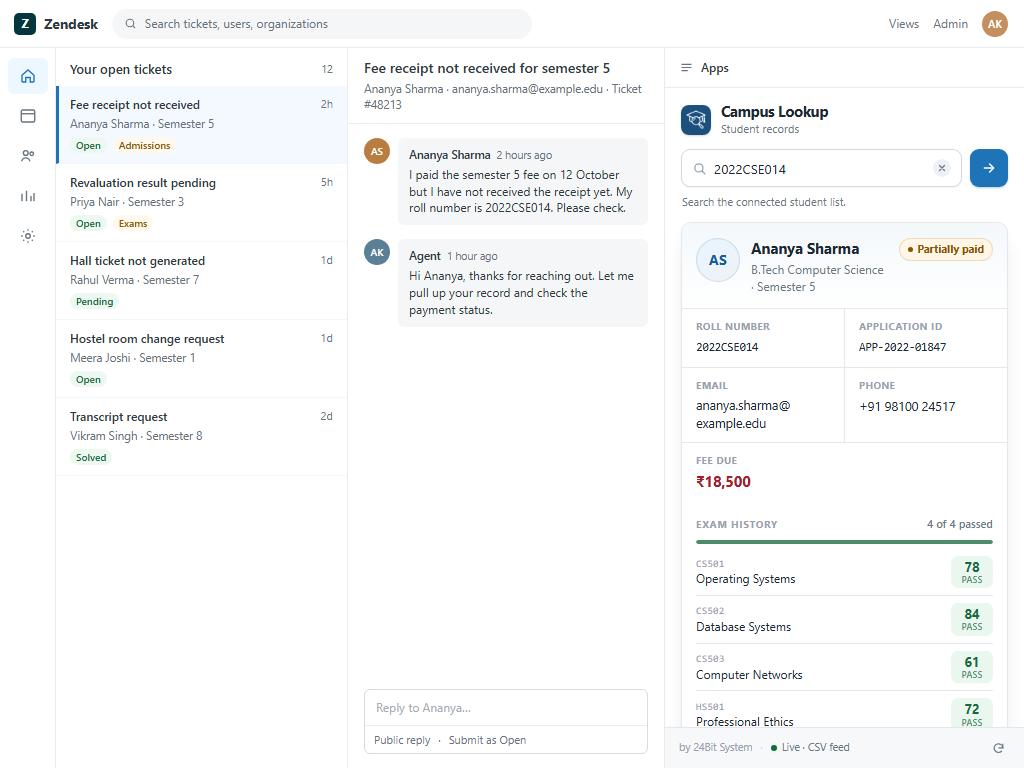
- The record opens in the sidebar: roll number, application ID, email, phone, programme, semester, fee status and outstanding amount.
- Exam results follow, with marks and a pass or fail for each paper, plus a passed count.
Roll number, application ID, email and phone each have a copy button, so an agent can paste them into a reply or another system without retyping.
Requirements
| Item | Requirement |
|---|---|
| Zendesk | Zendesk Support, with permission to install apps |
| Data source | A CSV file reachable over HTTPS from the agent's browser — for example a Google Sheet published as CSV |
| Sheet columns | roll_no and application_id; the rest are optional and shown when present |
| Ticket field | Optional. A custom field holding the roll number or application ID enables automatic lookup |
The app makes no Zendesk API calls beyond reading the ticket field you nominate. It needs no API tokens, no OAuth connection and no server.
Installation
- Install Campus Lookup from the Zendesk Marketplace, or upload the app package as a private app in Admin Center.
- Open Admin Center → Apps and integrations → Zendesk Support apps → Campus Lookup.
- Open the app settings and fill in the three settings described below.
- Open a ticket with a known student and confirm the record appears.
Setting — Student data CSV URL
The public CSV your app reads. For a Google Sheet, use File → Share → Publish to web, choose the sheet and the CSV format, and paste the resulting link. A normal "anyone with the link" share is not the same as a published CSV and will not work.
Setting — Ticket field ID (optional)
The numeric ID of the ticket custom field that holds the roll number or application ID. Find it in Admin Center → Objects and rules → Tickets → Fields; the field ID appears in the field's URL and in the API response, for example 360001234567. With this set, the lookup runs by itself when a ticket opens.
Setting — Match column (optional)
The CSV column to match on first. It defaults to roll_no, and application_id is always searched too, so a ticket raised before a roll number exists can be looked up by application ID.
Leave the CSV URL empty to run the app on bundled sample data. A Demo badge and a "Sample data — not connected" footer make it obvious that no live source is in use.
Using the app
- Type a roll number or application ID and press Enter, or click the arrow button. A partial ID also matches, so an agent can search with the digits they have.
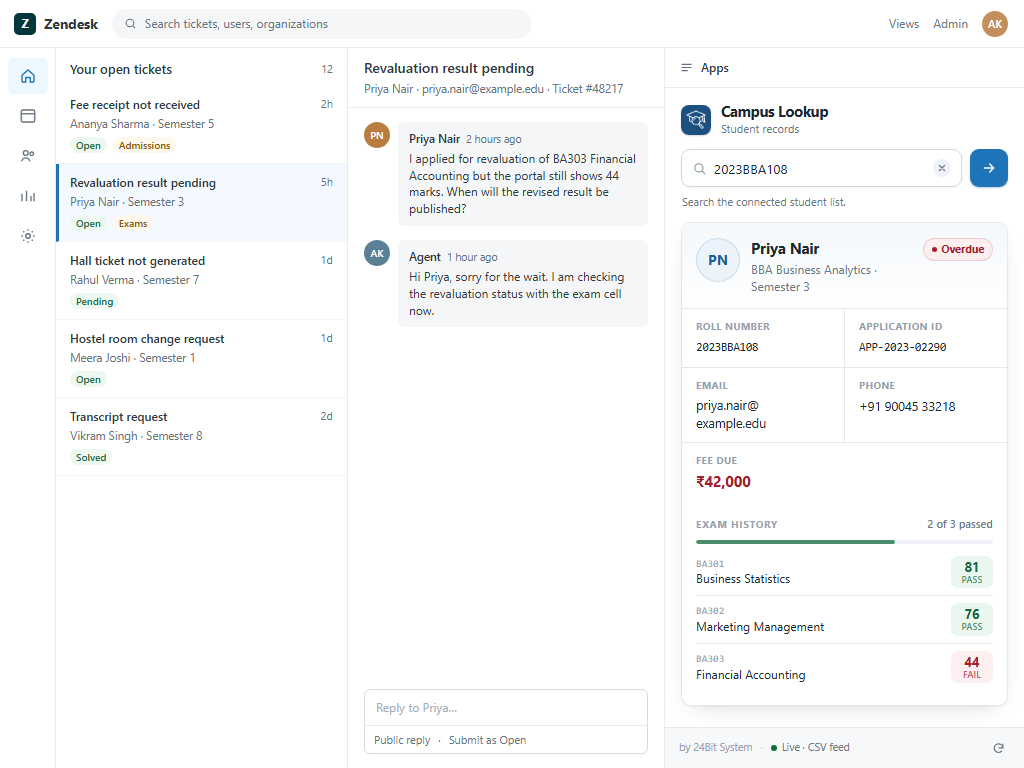
- The record shows a fee chip — Paid, Partially paid or Overdue — with the outstanding amount underneath.
- Exam history lists each paper with its marks and a pass or fail label, above a progress bar showing how many papers are cleared.
- The refresh button at the bottom reloads the sheet, which is useful after a fee update during the day.
- The footer shows where the data came from: Live · CSV feed or Live · Google Sheet.
Sheet format
The first row is the header. Column names are case-insensitive and spaces become underscores. Only two columns are required:
| Column | Required | Shown as |
|---|---|---|
roll_no | Yes | Roll number, with a copy button |
application_id | Yes | Application ID, with a copy button |
name | No | Record title and initials avatar |
program | No | Programme, under the name |
semester | No | Semester, next to the programme |
email | No | Email, with a copy button |
phone | No | Phone, with a copy button |
fee_status | No | Status chip: Paid, Partially paid or Overdue |
fee_due | No | Outstanding amount |
exams | No | Exam history, one paper per group |
The exams column holds several results in one cell, separated by semicolons, with each result's fields separated by a pipe:
CS501|Operating Systems|78|Pass;CS502|Database Systems|84|Pass
The order is code, subject, marks, status. Wrap values that contain a comma in quotes, for example "18,500".
When something goes wrong
The app states what failed rather than showing an empty panel. The message appears in place of the record, with a Try again button.
| Message | Cause | Fix |
|---|---|---|
| Could not load student data | The CSV URL returned an error, typically 404 or 403, or the sheet is no longer public | Re-publish the sheet as CSV and paste the new link |
| No rows found | The file loaded but has no header row plus at least one student | Check the header row and the export format |
| No record found | The ID is not in the sheet | Check the ID, or confirm the sheet is current |
| Not connected (footer) | No CSV URL is set, or the last load failed | Set the URL in app settings, then press refresh |
Data and privacy
| Read | The value of the ticket field you map to the app, and the student records in the CSV URL you configure. |
|---|---|
| Written | Nothing. The app never writes to Zendesk, and never edits the sheet. |
| Stored | Nothing beyond the current browser session. Records are held in memory so the agent can search again, and are discarded when the sidebar closes. |
| Transferred to 24Bit System | Nothing. Requests go from the agent's browser to the URL your institution set. There is no 24Bit System server in the request path. |
Full detail is in the Campus Lookup privacy policy.
Limitations
- Matching is exact first, then prefix. There is no fuzzy or phonetic search.
- The whole CSV is loaded on open and on refresh. A sheet with tens of thousands of rows will be slow to open; publish only the columns and students the desk actually needs.
- One record is shown per search. If two rows share an ID, the first match wins.
- The source must be CSV over HTTPS. Excel workbooks and private sheets are not supported.
- The app does not sync, cache to a database, or write back. If the sheet is stale, the app shows a stale record.
Support
Email [email protected] or open a request at support.24bitsystem.com. More about us at 24bitsystem.com.
When reporting a problem, include the message shown in the panel and whether the footer says live or not connected. Do not send student records or screenshots containing personal data.