
Reply with Invoice
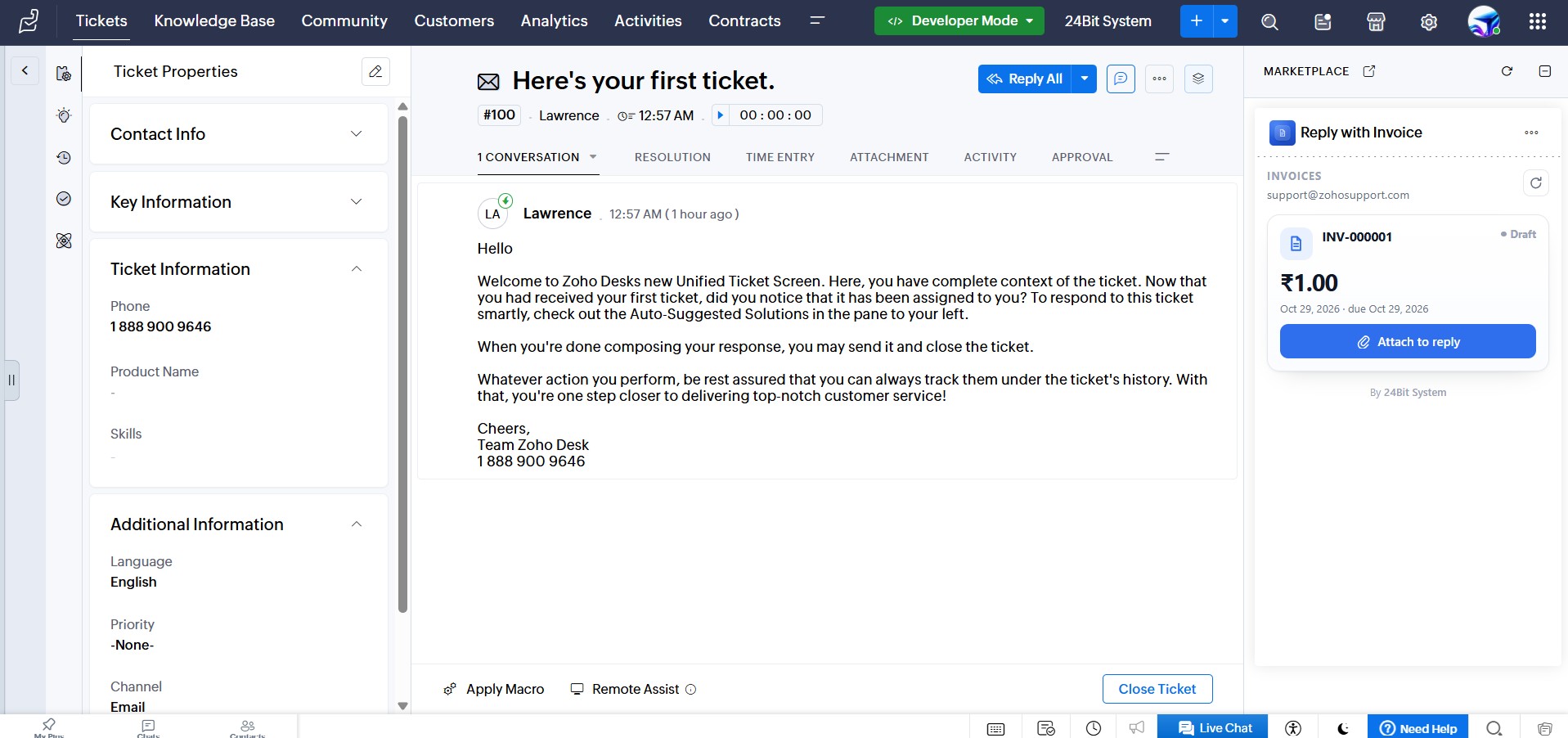
A Zoho Desk panel that lists the requester's Zoho Books invoices and puts the selected invoice PDF straight into the reply you are writing — no downloading to disk, no re-uploading.
| Vendor | 24Bit System |
|---|---|
| Platform | Zoho Desk extension widget |
| Works with | Zoho Books |
| Scope requested | ZohoBooks.invoices.READ only |
What it does
- You open a ticket in Zoho Desk.
- The panel reads the requester's email address from the ticket.
- It asks Zoho Books for that customer's latest invoices.
- You pick an invoice and click Attach to reply.
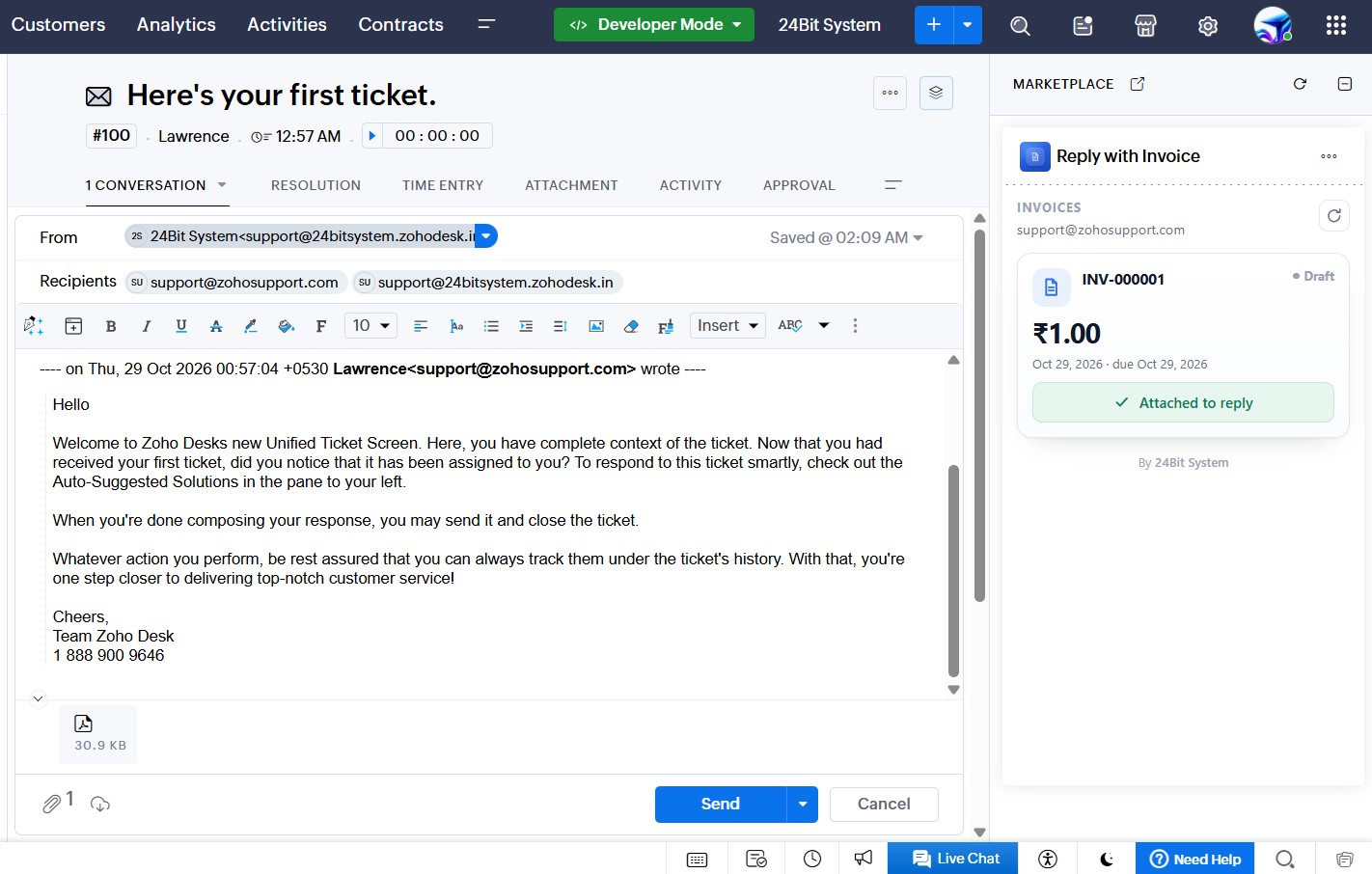
- The invoice PDF is fetched from Zoho Books and attached to the reply editor of the open ticket, ready to send.
Nothing is sent to the customer until you send the reply yourself.
Requirements
| Item | Requirement |
|---|---|
| Zoho Desk edition | Any edition that supports extensions (Enterprise and above for private install URLs) |
| Zoho Books | An active organization in the same Zoho account, with at least one invoice for the customer |
| Connection | A one-time authorization of the ZohoBooks-ReplyWithInvoice connection |
| Ticket field | The ticket must have a requester email address |
The extension cannot create, modify, delete, or send invoices, and it has no access to any other Zoho Books module.
Installation
- Install the extension from Zoho Marketplace, or use the private install link supplied by 24Bit System.
- In Zoho Desk go to Setup → Extensions → Reply with Invoice.
- Open the configuration and enter the organization ID described below.
- On the same page, click the connection row and authorize
ZohoBooks-ReplyWithInvoicewith the Zoho account that owns the Books organization. - Open any ticket. The Reply with Invoice panel appears behind the Marketplace icon in the ticket's right-hand rail.
Setting — Zoho Books organization ID
The numeric ID of your Books organization. Open Zoho Books → Settings → Organization Profile. The number is shown in the organization switcher and in the browser URL after /org/ — for example https://books.zoho.in/app/60000000001/…, where the ID is 60000000001.
That is the only setting. The extension picks the Books API endpoint that matches your Zoho Desk data center automatically (India, US, EU, Australia, Japan, or China), so there is no domain field to get wrong.
Using the widget
- The panel shows the newest invoice as a highlighted card, followed by up to nine earlier invoices.
- Each row shows the invoice number, date, due date, total, and status (paid, overdue, partially paid, sent, draft).
- Attach to reply adds the PDF to the reply editor for the open ticket. The button becomes Attached to reply and the editor shows the file chip.
- Refresh re-reads the invoice list. It is disabled while a fetch or an attach is in progress.
- If the ticket has no requester email, the panel says so instead of showing an empty list.
When something goes wrong
The widget never guesses. If a request fails it shows a short explanation, with the raw error text available on hover so support can diagnose the cause.
| Message | Cause | Fix |
|---|---|---|
| No email on this ticket | Requester has no email address | Add an email to the contact |
| Could not connect to Zoho Books | Connection not authorized or revoked | Re-authorize ZohoBooks-ReplyWithInvoice |
| Organization not found or invalid | Wrong organization ID, or the authorized account does not belong to it | Fix the organization ID and re-authorize the connection |
| No invoices found | This customer has no invoices in that Books organization | Confirm the ticket email is the same one used in Books |
| Invoice could not be downloaded | PDF fetch failed, or the invoice PDF is too large | Open the invoice in Zoho Books and send it manually |
Data and privacy
| Read | The requester email address of the ticket you open, and the invoice details (number, date, due date, total, status, PDF) of that email address in your own Zoho Books organization. |
|---|---|
| Written | The invoice PDF is placed in the reply editor of your own Zoho Desk ticket. Nothing else is written. |
| Stored | Nothing. There is no database and no storage; the PDF is held in browser memory only until you send or discard the reply. |
| Transferred outside Zoho | Nothing. Requests go through Zoho Desk's own request proxy to your Zoho Books API endpoint over HTTPS, using the connection you authorized. 24Bit System servers are never contacted and never receive customer, ticket, or invoice data. |
Installation and uninstallation
- Installing adds a panel to the ticket detail view and creates one connection entry. It does not read or modify any existing records.
- Uninstalling removes the panel and the connection. No data created by the extension remains, because none is stored.
Limitations
- The panel attaches one invoice per click. Attaching several invoices to the same reply is not supported.
- Invoices are looked up by the contact's email address. If a customer is billed under a different email than the one on the ticket, their invoices will not appear.
- Zoho limits uploads to 3 files per minute and 20 MB per file; invoices larger than 20 MB cannot be attached.
- The panel reads up to 50 invoices from Books and displays the 10 most recent.
Support
Email [email protected] or open a request at support.24bitsystem.com. More about us at 24bitsystem.com.
When reporting a problem, include the Zoho Desk edition, the exact message shown in the panel, and the raw error text from its tooltip. Do not include invoice contents or customer personal data in your report.